Creacion de un circulo

from Tkinter import *
root = Tk()
root.title('Ejemplo')
circulo = Canvas(width=210, height=210, bg='black')
circulo.pack(expand=YES, fill=BOTH)
circulo.create_oval(10, 10, 200, 200, width=5, fill='red')
root.mainloop()

--------------------------------------------------------------------------------------------------------------------------
Creacion de un rectangulo

basicamente es lo mismo que el circulo
from Tkinter import *
root = Tk()
root.title('Ejemplo')
rectangulo = Canvas(width=210, height=210, bg='white')
rectangulo.pack(expand=YES, fill=BOTH)
rectangulo.create_rectangle(10, 10, 200, 200, width=5, fill='yellow')
root.mainloop()

--------------------------------------------------------------------------------------------------------------------------
Creacion de unas lineas

from Tkinter import *
root = Tk()
root.title('Ejemplo')
linea = Canvas(width=210, height=210, bg='white')
linea.pack(expand=YES, fill=BOTH)
linea.create_line(0, 200, 200, 0, width=10, fill='blue')
linea.create_line(0, 0, 200, 200, width=10, fill='red')
root.mainloop()

--------------------------------------------------------------------------------------------------------------------------
Creacion de una ventana principal

from Tkinter import *
root = Tk()
root.title('Ventana')
ventana= Canvas(width=210, height=210, bg='white')
root.mainloop()

--------------------------------------------------------------------------------------------------------------------------
Una forma de controlar el tamaño de la ventana sería el siguiente:
from Tkinter import *
v0 = Tk()
v0.config(bg="red")
v0.geometry("500x500")
v0.mainloop()

--------------------------------------------------------------------------------------------------------------------------
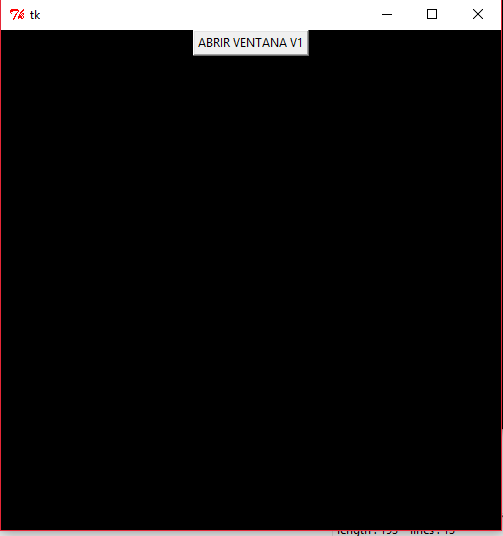
Para importar un botón se hace de la siguiente forma:
from Tkinter import *
v0 = Tk()
v0.config(bg="black")
v0.geometry("500x500")
b1=Button(v0,text="ABRIR VENTANA V1")
b1.pack()
v1=Toplevel(v0)
v1.withdraw()
v0.mainloop()

--------------------------------------------------------------------------------------------------------------------------
Creación de figuras mediante botón (Linea)
# -*- coding: utf-8 -*-from tkinter import *
from Tkinter import *
ventana = Tk() # Tk() Es la ventana principal
ventana.title("ventana de figura con boton")
ventana.config(bg="white") # Le da color al fondo
ventana.geometry("500x500") # Cambia el tamao de la ventana
def ejecutar(f):
ventana.after(200, f) # Una forma de ejecutar las funciones
def linea(ventana):
linea= Canvas(width=210, height=210, bg='black')
linea.pack(expand=YES, fill=BOTH)
linea.create_line(500, 500, 0,0, width=10, fill="red")
def ocultar(ventana):
ventana.withdraw()
botonline = Button(ventana, text="ver linea", command=lambda: ejecutar(linea(ventana)))
botonline.pack() # El botn es cargado
boton2= Button(ventana, text="Cerrar", command=lambda: ejecutar(ocultar(ventana)))
boton2.pack()
ventana.mainloop()
--------------------------------------------------------------------------------------------------------------------------
Creación de figuras mediante botón (Rectangulo)
# -*- coding: utf-8 -*-from tkinter import *
from Tkinter import *
ventana2 = Tk() # Tk() Es la ventana
ventana2.title("ventana de figura con boton")
ventana2.config(bg="white")
ventana2.geometry("500x500") # Cambia el tamao de la ventana
def ejecutar(f):
ventana2.after(200, f) # Una forma de ejecutar las funciones
def rectangulo(ventana):
rectangulo = Canvas(width=210, height=210,bg='red')
rectangulo.pack(expand=YES, fill=BOTH)
rectangulo.create_rectangle(10, 10, 200, 200, width=5, fill="blue")
def ocultar(ventana):
ventana2.withdraw()
botonrect = Button(ventana2, text="ver rectangulo", command=lambda: ejecutar (rectangulo(ventana2)))
botonrect.pack()
boton2= Button(ventana2, text="Cerrar", command=lambda: ejecutar(ocultar(ventana2)))
boton2.pack()
ventana2.mainloop()
--------------------------------------------------------------------------------------------------------------------------
Creación de figuras mediante botón (Circulo)
# -*- coding: utf-8 -*-from tkinter import *
from Tkinter import *
ventana1 = Tk() # Tk() Es la ventana
ventana1.title("ventana de figura con boton")
ventana1.config(bg="white")
ventana1.geometry("500x500") # Cambia el tamao de la ventana
def ejecutar(f):
ventana1.after(200, f) # Una forma de ejecutar las funciones
def circulo(ventana):
circulo = Canvas(width=210, height=210,bg='red')
circulo.pack(expand=NO, fill=BOTH)
circulo.create_oval(10, 10, 200, 200, width=3, fill='black') # radio,
def ocultar(ventana):
ventana1.withdraw()
botoncir = Button(ventana1, text="ver circulo", command=lambda: ejecutar (circulo(ventana1)))
botoncir.pack()
boton2= Button(ventana1, text="Cerrar", command=lambda: ejecutar(ocultar(ventana1)))
boton2.pack()
ventana1.mainloop()
--------------------------------------------------------------------------------------------------------------------------
Creación de figuras mediante ventana hija y botón de cerrar (Éxito en la vida :D )
from Tkinter import *
v0 = Tk()
v1=Toplevel(v0)
def mostrar(ventana): ventana.deiconify()
def ocultar(ventana):ventana.withdraw()
def ejecutar(f): v0.after(200,f)
v0.config(bg="blue")
v0.geometry("500x500")
def circulo(ventana):
v1.deiconify()
circulo = Canvas(v1,width=210, height=210, bg="red")
circulo.pack(expand=YES, fill=BOTH)
circulo.create_oval(10, 10, 200, 200, width=3, fill='blue')
def rectangulo(ventana):
v1.deiconify()
rectangulo = Canvas(v1,width=210, height=210, bg="yellow")
rectangulo.pack(expand=YES, fill=BOTH)
rectangulo.create_rectangle(10, 10, 200, 200, width=3, fill='orange')
boton2= Button(v1, text="Cerrar", command=lambda: ejecutar(ocultar(v1)))
boton2.pack()
b1=Button(v0,text="Mostrar circulo",command=lambda: ejecutar(circulo(v0)))
b1.grid(row=1,column=3)
b2=Button(v0,text="Mostrar rectangulo",command=lambda: ejecutar(rectangulo(v0)))
b2.grid(row=1,column=2)
v1.withdraw()
v0.mainloop()
--------------------------------------------------------------------------------------------------------------------------
Creacion del Tic Tac Toe (El Gato)
# -*- coding: utf-8 -*-from tkinter import *
from Tkinter import *
import tkMessageBox
import tkSimpleDialog
def bloq():
for i in range(0,9):
lisb[i].config(state="disable")
def inij(): # En este se incializa el juego
for i in range(0,9):
lisb[i].config(state="normal")
lisb[i].config(bg="Black")
lisb[i].config(text="")
tab[i] = "N"
global nomj1,nomj2 #indica a que variables queremos acceder
nomj1=tkSimpleDialog.askstring("Jugador","Escribe el nombre del jugador 1: ")
nomj2=tkSimpleDialog.askstring("Jugador","Escribe el nombre del jugador 2: ")
turj.set("Turno: "+nomj1)
def cam(num): #en esta funcion te muestra el cambio de turno
global turno,nomj1,nomj2
if tab[num]=="N" and turno==0:
lisb[num].config(text="X")
lisb[num].config(bg="black")
tab[num]="X"
turno=1
turj.set("Turno: "+nomj2)
elif tab[num]=="N" and turno==1:
lisb[num].config(text="O")
lisb[num].config(bg="red")
tab[num]="O"
turno=0
turj.set("Turno: "+nomj1)
lisb[num].config(state="disable")
verif()
def verif(): # en esta funcion te enseña las diferentes formas de ganar en este juego
if (tab[0]=="X" and tab[1]=="X" and tab[2]=="X") or (tab[3]=="X" and tab[4]=="X" and tab[5]=="X") or (tab[6]=="X" and tab[7]=="X" and tab[8]=="X"):
bloq()
tkMessageBox.showinfo("Ganaste","Ganaste jugador: "+nomj1)
elif (tab[0]=="X" and tab[3]=="X" and tab[6]=="X") or (tab[1]=="X" and tab[4]=="X" and tab[7]=="X") or (tab[2]=="X" and tab[5]=="X" and tab[8]=="X"):
bloq()
tkMessageBox.showinfo("Ganaste","Ganaste jugador: "+nomj1)
elif (tab[0]=="X" and tab[4]=="X" and tab[8]=="X") or (tab[2]=="X" and tab[4]=="X" and tab[6]=="X"):
bloq()
tkMessageBox.showinfo("Ganaste","Ganaste jugador: "+nomj1)
elif (tab[0]=="O" and tab[1]=="O" and tab[2]=="O") or (tab[3]=="O" and tab[4]=="O" and tab[5]=="O") or (tab[6]=="O" and tab[7]=="O" and tab[8]=="O"):
bloq()
tkMessageBox.showinfo("Ganaste","Ganaste jugador: "+nomj2)
elif (tab[0]=="O" and tab[3]=="O" and tab[6]=="O") or (tab[1]=="O" and tab[4]=="O" and tab[7]=="O") or (tab[2]=="O" and tab[5]=="O" and tab[8]=="O"):
bloq()
tkMessageBox.showinfo("Ganaste","Ganaste jugador: "+nomj2)
elif (tab[0]=="O" and tab[4]=="O" and tab[8]=="O") or (tab[2]=="O" and tab[4]=="O" and tab[6]=="O"):
bloq()
tkMessageBox.showinfo("Ganaste","Ganaste jugador: "+nomj2)
ven=Tk()#Es el tamaño del juego del gato
ven.geometry("370x460")
ven.title("Juego del gato")
turno = 0
nomj1=""
nomj2=""
lisb=[]
tab=[]
turj=StringVar()
for i in range(0,9):
tab.append("N")
b0=Button(ven,width=9,height=3,relief=SOLID,cursor="pencil",command=lambda: cam(0)) #Esto serian los botones
lisb.append(b0)
b0.place(x=50,y=50)
b1=Button(ven,width=9,height=3,relief=SOLID,cursor="pencil",command=lambda: cam(1))
lisb.append(b1)
b1.place(x=150,y=50)
b2=Button(ven,width=9,height=3,relief=SOLID,cursor="pencil",command=lambda: cam(2))
lisb.append(b2)
b2.place(x=250,y=50)
b3=Button(ven,width=9,height=3,relief=SOLID,cursor="pencil",command=lambda: cam(3))
lisb.append(b3)
b3.place(x=50,y=150)
b4=Button(ven,width=9,height=3,relief=SOLID,cursor="pencil",command=lambda: cam(4))
lisb.append(b4)
b4.place(x=150,y=150)
b5=Button(ven,width=9,height=3,relief=SOLID,cursor="pencil",command=lambda: cam(5))
lisb.append(b5)
b5.place(x=250,y=150)
b6=Button(ven,width=9,height=3,relief=SOLID,cursor="pencil",command=lambda: cam(6))
lisb.append(b6)
b6.place(x=50,y=250)
b7=Button(ven,width=9,height=3,relief=SOLID,cursor="pencil",command=lambda: cam(7))
lisb.append(b7)
b7.place(x=150,y=250)
b8=Button(ven,width=9,height=3,relief=SOLID,cursor="pencil",command=lambda: cam(8))
lisb.append(b8)
b8.place(x=250,y=250)
tue=Label(ven, textvariable=turj).place(x=140,y=10)
bini=Button(ven,bg='blue',fg='white',text='Iniciar juego',cursor="sizing",width=15,height=3,command=inij).place(x=130,y=360)
bloq()
linea = Canvas(ven,width=310, height=10)
linea.place(x=30,y=120)
linea.create_line(310,0,0,0, width=25, fill='red')
l2 = Canvas(ven,width=310, height=10)
l2.place(x=30,y=220)
l2.create_line(310,0,0,0, width=25, fill='red')
l3 = Canvas(ven,width=10, height=310)
l3.place(x=130,y=25)
l3.create_line(0,310,0,0, width=25, fill='black')
l4 = Canvas(ven,width=10, height=310)
l4.place(x=230,y=25)
l4.create_line(0,310,0,0, width=25, fill='black')
ven.mainloop()
--------------------------------------------------------------------------------------------------------------------------
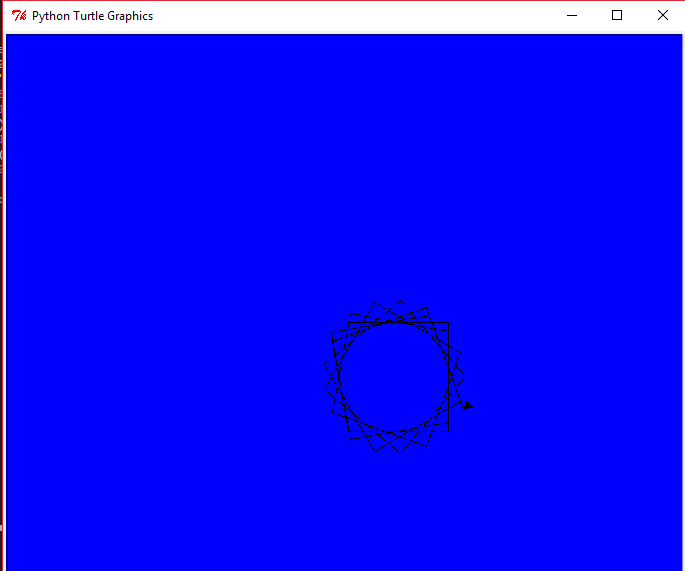
# turtle honeycomb
# Lasse Kosiol
# 1.9.2012
# python workshop opentechschool berlin
import turtle
from random import randint
size = 20
circles = 20
turtle.speed(100)
turtle.colormode(255)
def move(length, angle):
turtle.right(angle)
turtle.forward(length)
def hex():
turtle.pendown()
turtle.color( randint(0,255),randint(0,255),randint(0,255) )
turtle.begin_fill()
for i in range(6):
move(size,-60)
turtle.end_fill()
turtle.penup()
# start
turtle.penup()
for circle in range (circles):
if circle == 0:
hex()
move(size,-60)
move(size,-60)
move(size,-60)
move(0,180)
for i in range (6):
move(0,60)
for j in range (circle+1):
hex()
move(size,-60)
move(size,60)
move(-size,0)
move(-size,60)
move(size,-120)
move(0,60)
turtle.exitonclick()
--------------------------------------------------------------------------------------------------------------------------
Creación de figuras mediante ventana hija y botón de cerrar con otras figuras
# -*- coding: utf-8 -*-from tkinter import *
from Tkinter import *
v0 = Tk()
v1=Toplevel(v0)
v2=Toplevel(v0)
v3=Toplevel(v0)
v4=Toplevel(v0)
v5=Toplevel(v0)
v6=Toplevel(v0)
def mostrar(ventana): ventana.deiconify()
def ocultar(ventana):ventana.withdraw()
def ejecutar(f): v0.after(200,f)
v0.config(bg="black")
v0.geometry("750x750")
def circulo(ventana):
v1.deiconify()
circulo = Canvas(v1,width=210, height=210, bg="red")
circulo.pack(expand=YES, fill=BOTH)
circulo.create_oval(10, 10, 200, 200, width=3, fill='blue')
def rectangulo(ventana):
v2.deiconify()
rectangulo = Canvas(v2,width=210, height=210, bg="yellow")
rectangulo.pack(expand=YES, fill=BOTH)
rectangulo.create_rectangle(10, 10, 200, 200, width=3, fill='orange')
def linea(ventana):
v3.deiconify()
linea= Canvas(v3,width=210, height=210, bg='black')
linea.pack(expand=YES, fill=BOTH)
linea.create_line(500, 500, 0,0, width=10, fill="red")
def arc(ventana):
v4.deiconify()
arco = Canvas(v4,width=210, height=210, bg='white')
arco.pack(expand=YES, fill=BOTH)
xy = 10, 10, 190, 190
arco.create_arc(xy, start=0, extent=180, fill='gray60')
#arco.create_arc(10, 10, 190, 190, start=270, extent=90, fill='gray90')
def ques(ventana):
v5.deiconify()
quesi = Canvas(v5,width=210, height=210, bg='white')
quesi.pack(expand=YES, fill=BOTH)
quesi.create_arc(10, 10, 190, 190, start=270, extent=90, fill='gray90')
def quepar(ventana):
v6.deiconify()
par1= Canvas(v6, width=210, height=210, bg='#E0ECFF')
par1.pack()
par1.create_arc(10, 10, 190, 190, start=0, extent=90, fill='yellow')
par1.create_arc(10, 10, 190, 190, start=90, extent=90, fill='green')
par1.create_arc(10, 10, 190, 190, start=180, extent=90, fill='yellow')
par1.create_arc(10, 10, 190, 190, start=270, extent=90, fill='green')
boton2= Button(v1, text="Cerrar",bg="Red", command=lambda: ejecutar(ocultar(v1)))
boton2.pack()
boton3= Button(v2, text="Cerrar",bg="blue", command=lambda: ejecutar(ocultar(v2)))
boton3.pack()
boton4= Button(v3, text="Cerrar",bg="#E0ECFF", command=lambda: ejecutar(ocultar(v3)))
boton4.pack()
boton5= Button(v4, text="Cerrar",bg="Red", command=lambda: ejecutar(ocultar(v4)))
boton5.pack()
boton6= Button(v5, text="Cerrar",bg="pink", command=lambda: ejecutar(ocultar(v5)))
boton6.pack()
boton7= Button(v6, text="Cerrar",bg="purple", command=lambda: ejecutar(ocultar(v6)))
boton7.pack()
b1=Button(v0,text="Mostrar circulo",command=lambda: ejecutar(circulo(v0)))
b1.grid(row=1,column=3)
b2=Button(v0,text="Mostrar rectangulo",command=lambda: ejecutar(rectangulo(v0)))
b2.grid(row=1,column=2)
b3=Button(v0,text="Mostrar linea",command=lambda: ejecutar(linea(v0)))
b3.grid(row=1,column=4)
b4=Button(v0,text="Mostrar arco",command=lambda: ejecutar(arc(v0)))
b4.grid(row=1,column=1)
b5=Button(v0,text="Mostrar ques",command=lambda: ejecutar(ques(v0)))
b5.grid(row=1,column=5)
b6=Button(v0,text="Mostrar quepar",command=lambda: ejecutar(quepar(v0)))
b6.grid(row=1,column=6)
v6.withdraw()
v5.withdraw()
v4.withdraw()
v3.withdraw()
v2.withdraw()
v1.withdraw()
v0.mainloop()
--------------------------------------------------------------------------------------------------------------------------
# -*- coding: utf-8 -*-from tkinter import *
from Tkinter import *
v0 = Tk()
v1=Toplevel(v0)
v2=Toplevel(v0)
v3=Toplevel(v0)
v4=Toplevel(v0)
v5=Toplevel(v0)
v6=Toplevel(v0)
v7=Toplevel(v0)
v8=Toplevel(v0)
v9=Toplevel(v0)
v10=Toplevel(v0)
v11=Toplevel(v0)
v12=Toplevel(v0)
v13=Toplevel(v0)
v14=Toplevel(v0)
def mostrar(ventana): ventana.deiconify()
def ocultar(ventana):ventana.withdraw()
def ejecutar(f): v0.after(200,f)
v0.config(bg="black")
v0.geometry("950x950")
def circulo(ventana):
v1.deiconify()
circulo = Canvas(v1,width=210, height=210, bg="red")
circulo.pack(expand=YES, fill=BOTH)
circulo.create_oval(10, 10, 200, 200, width=3, fill='blue')
def rectangulo(ventana):
v2.deiconify()
rectangulo = Canvas(v2,width=210, height=210, bg="yellow")
rectangulo.pack(expand=YES, fill=BOTH)
rectangulo.create_rectangle(10, 10, 200, 200, width=3, fill='orange')
def linea(ventana):
v3.deiconify()
linea= Canvas(v3,width=210, height=210, bg='black')
linea.pack(expand=YES, fill=BOTH)
linea.create_line(500, 500, 0,0, width=10, fill="red")
def arc(ventana):
v4.deiconify()
arco = Canvas(v4,width=210, height=210, bg='white')
arco.pack(expand=YES, fill=BOTH)
xy = 10, 10, 190, 190
arco.create_arc(xy, start=0, extent=180, fill='gray60')
#arco.create_arc(10, 10, 190, 190, start=270, extent=90, fill='gray90')
def ques(ventana):
v5.deiconify()
quesi = Canvas(v5,width=210, height=210, bg='white')
quesi.pack(expand=YES, fill=BOTH)
quesi.create_arc(10, 10, 190, 190, start=270, extent=90, fill='gray90')
def quepar(ventana):
v6.deiconify()
par1= Canvas(v6, width=210, height=210, bg='#E0ECFF')
par1.pack()
par1.create_arc(10, 10, 190, 190, start=0, extent=90, fill='yellow')
par1.create_arc(10, 10, 190, 190, start=90, extent=90, fill='green')
par1.create_arc(10, 10, 190, 190, start=180, extent=90, fill='yellow')
par1.create_arc(10, 10, 190, 190, start=270, extent=90, fill='green')
def texto(ventana):
v7.deiconify()
texto= Canvas(v7,width=210,height=210,bg='white')
texto.pack(expand=YES, fill=BOTH)
texto.create_text(150,70,fil="red",font="bold",text="Esta Clase es Muy Divertida ")
v7.geometry("750x750")
def poligono(ventana):
v8.deiconify()
poligono=Canvas(v8,width=210,height=210,bg='white')
poligono.pack(expand=YES, fill=BOTH)
poligono.create_polygon(40,40,40,140,140,140,140,100,fill="red",outline="brown",width=6)
v8.geometry("750x750")
def corazon(ventatna):
v9.deiconify()
corazon=Canvas(v9,width=210,height=210,bg='white')
corazon.pack(expand=YES, fill=BOTH)
corazon.create_polygon(300, 300,400, 200,500, 200,600, 300, 700, 200,800, 200,900, 300,878, 395,600, 700,325, 401,fill="red",outline="brown",width=6)
v9.geometry("750x750")
def perro(ventatna):
v10.deiconify()
perro=Canvas(v10,width=210,height=210,bg='white')
perro.pack(expand=YES, fill=BOTH)
perro.create_polygon(37.29,21.55,
53.89,47.62,
31,80,
46.38,98.19,
76.8,83.97,
78.38,131.78,
97.34,132.17,
98.92,98.19,
135.67,97.4,
136.85,134.15,
155.03,133.75,
153.84,80.81,
175.57,24.32,
137.25,58.69,
78.78,61.45,
66.53,42.88,fill="red",outline="brown",width=6)
def conejo (ventana):
v11.deiconify()
conejo=Canvas(v11,width=210,height=210,bg='green')
conejo.pack(expand=YES, fill=BOTH)
conejo.create_polygon(382.6, 54.5,
339.07, 56.3,
311.48, 99.02,
284.55, 99.02,
284.78, 141.74,
334.62, 141.74,
336.4, 180.91,
313.26, 212.95,
339.96, 240.54,
338.18, 212.06,
375.56, 254.78,
355, 286,
384.46, 302.84,
454.78, 303.73,
456.56, 210.28,
347.97, 113.26,
340.85, 97.24,fill="white",outline="black",width=6)
def figura(ventana):
v12.deiconify()
figura=Canvas(v12,width=210,height=210,bg='green')
figura.pack(expand=YES, fill=BOTH) # Sirve para cargar la figura
figura.create_polygon(52.5,14.5,37,59.1,51,59.1, fill="#5C554E", outline="#5C554E", width=1)
figura.create_polygon(19.3, 56.8,58,59.1,67,91,37.5,83, fill="#C3BAB5", outline="#C3BAB5", width=1)
figura.create_polygon(58, 57.8, 78, 77, 71, 103, fill="#D4CCC1", outline="#D4CCC1", width=1)
figura.create_polygon(37.5, 83,67.4,91,71,103, fill="#998C8A", outline="#998C8A", width=1)
figura.create_polygon(71, 103, 71,104.8, 59.1,104.8,53.2,91,fill="#665B57", outline="#665B57", width=1)
figura.create_polygon(86,105.6,98.2,148.6,47,133.6,24.2,103.6, fill="#C3BAB5", outline="#C3BAB5", width=1)
figura.create_polygon(98.2, 148.6,102,165.2, 47,133.6, fill="#9B8D8A", outline="#9B8D8A", width=1)
figura.create_polygon(86,105.6,124,169, 120,196,110.8,196, fill="#D5CDC2", outline="#D5CDC2", width=1)
figura.create_polygon(102,165.2,110.8,196,99,196,80.6,153, fill="#605550", outline="#605550", width=1)
figura.create_polygon(139.5, 197, 147, 241, 71, 220.4, 46, 193, fill="#C3BAB5", outline="#C3BAB5", width=1)
figura.create_polygon(147, 241, 150, 261.4, 71, 220.4, fill="#968B87", outline="#968B87", width=1)
figura.create_polygon(139.5, 197, 193, 274.2, 189, 307.8, 176, 321, 161.6, 321, fill="#D4CCC1", outline="#D4CCC1",width=1)
figura.create_polygon(150, 261.4, 161.6, 321, 126.8, 249, fill="#605551", outline="#605551", width=1)
figura.create_polygon(199.4,307.8,189,307.8, 176,321,186.6,461,184,448.8,171,479.5,199.4,503,fill="#C2AD9C", outline="#C2AD9C", width=1)
figura.create_polygon(176, 321, 161.6, 321,186.6,461,fill="#615652", outline="#615652", width=1)
figura.create_polygon(161.6, 321, 136, 359.4,177.2,409,fill="#D9C6B7", outline="#D9C6B7", width=1)
figura.create_polygon(144.4,369.8, 139.6,384.6,160,389.4,fill="#443232", outline="#443232", width=1)
figura.create_polygon(139.6, 384.6, 160, 389.4,177.2,409,169.2,450, fill="#826E65", outline="#826E65", width=1)
figura.create_polygon(171,479.5,180.6,497.8,191.2,496.8, fill="#463334", outline="#463334", width=1)
figura.create_polygon(177.2, 409,164.8,475,176.5,511,199.4,522,199.4,502.8,191.2,496.8,180.6,497.8,171,479.5,184,448.8, fill="#9B7F79", outline="#9B7F79", width=1)
figura.create_polygon(151.8,335.4,109.6,280,142.2,349.2, fill="#5F5150", outline="#5F5150", width=1)
figura.create_polygon(109.6, 280, 70.3,266,94.3,329,131.3,326, fill="#483636", outline="#483636", width=1)
figura.create_polygon(94.3, 329,137,336,132,326.8, fill="#C2AF9D", outline="#C2AF9D", width=1)
figura.create_polygon(115, 333, 136, 359.4, 142.2,349.2,137,336, fill="#826E65", outline="#826E65", width=1)
#Lado inverso
figura.create_polygon(346.5, 14.5,347.5,59.1,361,59.1, fill="#2E2621", outline="#2E2621", width=1)
figura.create_polygon(379.4, 56.8, 341.8, 59.1, 332, 91, 361, 83, fill="#908782", outline="#908782", width=1)
figura.create_polygon(341.5, 57.8, 324, 75, 327.6, 103, fill="#A29B8F", outline="#A29B8F", width=1)
figura.create_polygon(361, 83, 332.4, 91, 329, 103, fill="#685D59", outline="#685D59", width=1)
figura.create_polygon(329, 103, 326.8, 104.8, 340, 104.8, 345.6, 91, fill="#2D2220", outline="#2D2220", width=1)
figura.create_polygon(313, 105.6, 301, 148.6, 352, 133.6, 374.5, 103.6, fill="#908782", outline="#908782", width=1)
figura.create_polygon(301, 148.6, 297, 165.2, 352, 133.6, fill="#625755", outline="#625755", width=1)
figura.create_polygon(313, 105.6, 274, 169,279, 196, 288, 196, fill="#A1998E", outline="#A1998E", width=1)
figura.create_polygon(297, 165.2, 288, 196,300,196, 318, 153, fill="#2D221E", outline="#2D221E", width=1)
figura.create_polygon(260,197,252,241,331,220.4,352.4,193, fill="#908782", outline="#908782", width=1)
figura.create_polygon(252, 241, 249, 261.4, 331,220.4, fill="#645955", outline="#645955", width=1)
figura.create_polygon(260, 197, 205,274.2, 209.8,307.8,223,321,238,321, fill="#A1998E", outline="#A1998E", width=1)
figura.create_polygon(249, 261.4,238.6,321,271.8,249, fill="#2D221E", outline="#2D221E", width=1)
figura.create_polygon(199.4, 307.8, 209.8,307.8, 223,321, 212.6, 461, 215, 448.8, 228, 479.5, 199.4, 503,fill="#8E7968", outline="#8E7968", width=1)
figura.create_polygon(223, 321, 238.6,321, 212.6, 461, fill="#302722", outline="#302722", width=1)
figura.create_polygon(238, 321, 262.8, 359.4, 222.5, 409, fill="#A69384", outline="#A69384", width=1)
figura.create_polygon(254.4, 369.8, 259.6, 384.6, 238, 389.4, fill="#120001", outline="#120001", width=1)
figura.create_polygon(259.6, 384.6, 238, 389.4, 222.5, 409, 229.5, 450, fill="#4F3B32", outline="#4F3B32", width=1)
figura.create_polygon(228, 479.5, 218.3, 497.8, 207.5, 496.8, fill="#180A04", outline="#180A04", width=1)
figura.create_polygon(222.5, 409, 234, 475, 223, 511, 199.4, 522, 199.4, 502.8, 207.5, 496.8, 218.3, 497.8, 228,
479.5, 215, 448.8, fill="#674C45", outline="#674C45", width=1)
figura.create_polygon(247, 335.4, 290.6, 280, 256.8, 349.2, fill="#281F1D", outline="#281F1D", width=1)
figura.create_polygon(290.6, 280, 328, 266, 304.8, 329, 267.5, 326, fill="#140202", outline="#140202", width=1)
figura.create_polygon(304.8, 329, 262.5, 336, 267.5, 326.8, fill="#8D7B66", outline="#8D7B66", width=1)
figura.create_polygon(283, 333, 262.8, 359.4, 256.8, 349.2, 262.5, 336, fill="#4D3930", outline="#4D3930", width=1)
def gato (ventana):
v13.deiconify()
gato = Canvas(v13, width=300, height=200, bg='white')
gato.pack(expand=YES, fill=BOTH)
gato.create_polygon(420,180,
420,60,
380,100,
300,100,
260,60,
260,140,
220,100,
180,100,
140,140,
140,80,
150,80,
200,40,
200,20,
160,20,
90,80,
100,160,
120,270,
200,270,
200,230,
160,230,
160,210,
180,190,
220,190,
220,270,
280,270,
280,230,
260,230,
260,180,
400,200,
360,220,
320,220,
280, 180,
fill="lightblue", outline="brown", width=6)
boton2= Button(v1, text="Cerrar",bg="Red", command=lambda: ejecutar(ocultar(v1)))
boton2.pack()
boton3= Button(v2, text="Cerrar",bg="blue", command=lambda: ejecutar(ocultar(v2)))
boton3.pack()
boton4= Button(v3, text="Cerrar",bg="#E0ECFF", command=lambda: ejecutar(ocultar(v3)))
boton4.pack()
boton5= Button(v4, text="Cerrar",bg="Red", command=lambda: ejecutar(ocultar(v4)))
boton5.pack()
boton6= Button(v5, text="Cerrar",bg="pink", command=lambda: ejecutar(ocultar(v5)))
boton6.pack()
boton7= Button(v6, text="Cerrar",bg="purple", command=lambda: ejecutar(ocultar(v6)))
boton7.pack()
boton8= Button(v7, text="Cerrar",bg="purple", command=lambda: ejecutar(ocultar(v7)))
boton8.pack()
boton9= Button(v8, text="Cerrar",bg="darkred", command=lambda: ejecutar(ocultar(v8)))
boton9.pack()
boton10= Button(v9, text="Cerrar",bg="darkred", command=lambda: ejecutar(ocultar(v9)))
boton10.pack()
boton11= Button(v10, text="Cerrar",bg="darkred", command=lambda: ejecutar(ocultar(v10)))
boton11.pack()
boton12= Button(v11, text="Cerrar",bg="darkred", command=lambda: ejecutar(ocultar(v11)))
boton12.pack()
boton13= Button(v12, text="Cerrar",bg="darkred", command=lambda: ejecutar(ocultar(v12)))
boton13.pack()
boton14= Button(v13, text="Cerrar",bg="darkred", command=lambda: ejecutar(ocultar(v13)))
boton14.pack()
b1=Button(v0,text="Mostrar circulo",command=lambda: ejecutar(circulo(v0)))
b1.grid(row=1,column=3)
b2=Button(v0,text="Mostrar rectangulo",command=lambda: ejecutar(rectangulo(v0)))
b2.grid(row=1,column=2)
b3=Button(v0,text="Mostrar linea",command=lambda: ejecutar(linea(v0)))
b3.grid(row=1,column=4)
b4=Button(v0,text="Mostrar arco",command=lambda: ejecutar(arc(v0)))
b4.grid(row=1,column=1)
b5=Button(v0,text="Mostrar ques",command=lambda: ejecutar(ques(v0)))
b5.grid(row=1,column=5)
b6=Button(v0,text="Mostrar quepar",command=lambda: ejecutar(quepar(v0)))
b6.grid(row=1,column=6)
b7=Button(v0,text="Mostrar texto",command=lambda: ejecutar(texto(v0)))
b7.grid(row=1,column=7)
b8=Button(v0,text="Mostrar poligono",command=lambda: ejecutar(poligono(v0)))
b8.grid(row=1,column=8)
b9=Button(v0,text="Mostrar corazon",command=lambda: ejecutar(corazon(v0)))
b9.grid(row=1,column=9)
b10=Button(v0,text="Mostrar perro",command=lambda: ejecutar(perro(v0)))
b10.grid(row=1,column=10)
b11=Button(v0,text="Mostrar conejo",command=lambda: ejecutar(conejo(v0)))
b11.grid(row=2,column=1)
b12=Button(v0,text="Mostrar figura",command=lambda: ejecutar(figura(v0)))
b12.grid(row=2,column=2)
b13=Button(v0,text="Mostrar gato",command=lambda: ejecutar(gato(v0)))
b13.grid(row=2,column=3)
v13.withdraw()
v12.withdraw()
v11.withdraw()
v10.withdraw()
v9.withdraw()
v8.withdraw()
v7.withdraw()
v6.withdraw()
v5.withdraw()
v4.withdraw()
v3.withdraw()
v2.withdraw()
v1.withdraw()
v0.mainloop()
link de pagina donde explica mas programas con graficacion mas detallado :
http://gmendezm.blogspot.mx/2012/12/tutorial-tkinter-python-gui.html
Link del video del tic tac toe :
https://www.youtube.com/watch?v=ZvbB2k398kw